My cousin got married last October and I spent the whole reception quietly annoyed at myself. I had my Samsung Galaxy S24 Ultra in my pocket — a phone that costs more than most entry-level DSLRs — and the photos I was taking looked flat, washed out, and weirdly over-sharpened. Meanwhile, my uncle’s friend was wandering around with an old Canon 80D and a nifty-fifty lens, and every shot he took looked like it came out of a magazine.
I went home that night and sat with my photos for about an hour, just genuinely confused. The specs on my phone’s camera should’ve blown that Canon out of the water. Bigger sensor (relatively), computational photography, multiple lenses — what was going wrong?
That frustration sent me down a rabbit hole I’m still in six months later. What I found changed how I shoot, edit, and think about mobile photography entirely. And no, the answer isn’t “just buy a DSLR.” It’s actually about learning to use AI tools the right way — tools that are sitting right there on your phone, mostly unused.
First, What Makes a Photo Look “DSLR-Like”?
Before we get into tools and techniques, it helps to understand what our eyes actually respond to when we see a “professional” photo. Because it’s not really about megapixels. It’s about a handful of visual qualities that DSLRs naturally produce — qualities that AI can now convincingly replicate on mobile.
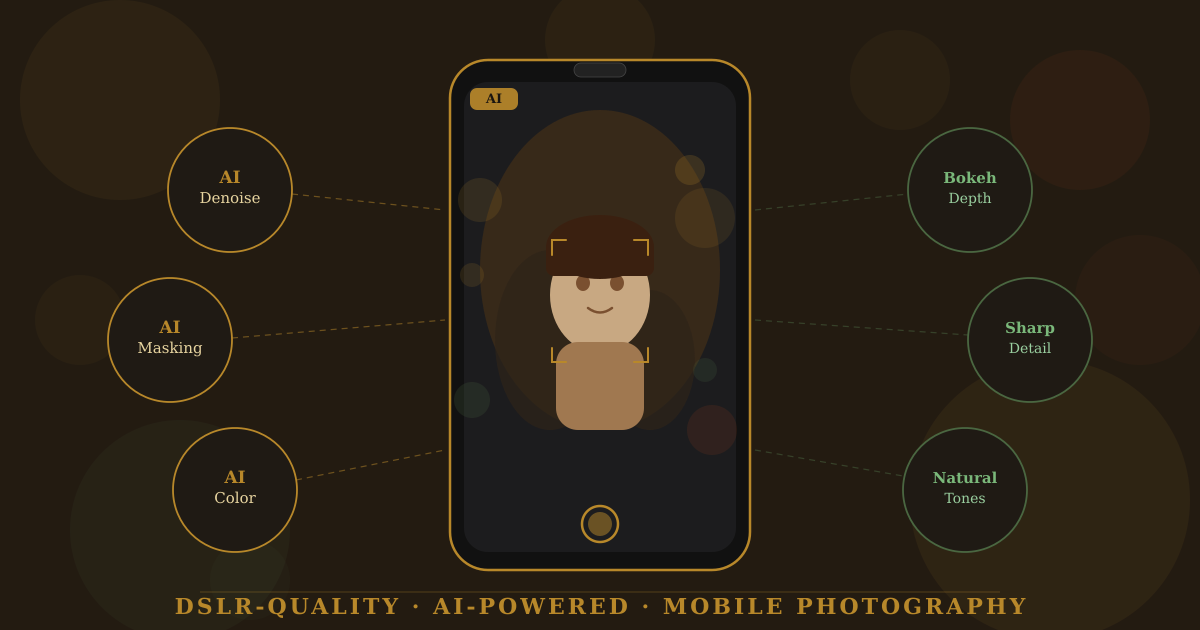
The big three are: shallow depth of field (that blurry background that makes your subject pop), natural color grading (not the pumped-up, oversaturated look phone cameras default to), and clean low-light performance (less grain, more detail in shadows). Get those three things right and a photo starts to feel like it came from a bigger camera — regardless of what actually took it.
Here’s the thing though: phone cameras are actually quite good at all three now. The problem is that the default processing is tuned to look impressive on a phone screen at arm’s length — punchy, bright, slightly overdone. That’s not what you want for a photo you’re going to print, post somewhere people will actually look at it, or send to a photographer uncle who’ll scrutinize it.
“AI doesn’t replace your eye. It handles the technical heavy lifting so your eye can actually matter.”
— What I wish someone had told me two years agoThe Tools That Actually Work (From Personal Testing)
I’ve tested a lot of these over the past year. Most of them are either gimmicky or destroy the natural feel of the photo. Here are the ones that genuinely held up over time.
Lightroom Mobile
AI masking, denoise, and adaptive presets. The closest thing to a darkroom on your phone.
FreemiumSnapseed
Google’s free editing app. The “Portrait” and “Selective” tools are surprisingly powerful.
FreeTopaz Photo AI
Noise reduction and sharpening that’s genuinely jaw-dropping. A bit expensive but worth it.
PaidRemini
AI enhancement for portraits specifically. Works really well on faces in low-light shots.
FreemiumThere are others — Luminar AI, VSCO, even Google Photos has gotten surprisingly good at auto-enhancement — but the four above are where I spend 90% of my editing time.
Step-by-Step: Getting That DSLR Look from Your Phone
This is the workflow I’ve settled on after a lot of trial and error. It’s not the only way, but it works consistently across different lighting situations.
Stage One — Shoot Right
-
Shoot in Pro or Manual Mode
Every Android flagship and most iPhones now have a manual mode. Use it. Set your ISO as low as the light allows (100–400 is ideal). Let the camera meter the shutter speed, or set it yourself. You want control over grain before it happens — not to fight it in post.
-
Shoot RAW if Your Phone Supports It
RAW files contain far more data than JPEGs. When you bring that into Lightroom or Snapseed, you’ll be amazed at how much detail you can pull out of shadows and highlights. It’s like going from a sketch to a full painting in terms of editing room.
-
Use the Telephoto Lens, Not Digital Zoom
Most modern phones have 3x or 5x optical telephoto lenses. These naturally compress the background and give more separation between subject and surroundings — exactly the effect a longer DSLR lens produces. Stop using the main sensor and pinch-zooming. Use the actual telephoto.
-
Lock Focus and Exposure Separately
On iPhone, tap and hold on your subject to lock focus, then slide the exposure slider. On Android, use Pro Mode to set focus manually. This stops the camera from making decisions you don’t want it to make.
Stage Two — AI-Assisted Editing in Lightroom Mobile
-
Import and Run AI Denoise First
In Lightroom Mobile, go to Detail > Denoise. For phone shots — especially anything taken in the evening — run this before touching anything else. It smooths out grain without destroying texture the way older noise reduction used to. Genuinely remarkable how well it works.
-
Use AI Masking for Background Separation
Under Masking, tap “Select Subject.” Lightroom’s AI will draw a selection around your main subject automatically. From there you can darken the background slightly, reduce its saturation, or add a subtle blur. This is where portraits start looking like they were shot on a 50mm at f/1.8.
-
Adjust Tone Curve Like a Pro
Most people drag the basic sliders around and call it done. Instead, open the Tone Curve and create a slight S-curve — lift the midtones a touch, pull down the blacks slightly, and bring the whites just below clipping. This alone shifts a phone photo into more cinematic territory.
-
Calibrate Your Colors
In the Color Mixer (HSL panel), desaturate oranges and yellows slightly for skin tones. Reduce the luminance of greens if there’s vegetation. Phone cameras oversaturate these. Pulling them back even 10–15 points makes the image feel much more natural and “filmic.”
Stage Three — Final Sharpening and Polish
-
Apply Selective Sharpening to Your Subject Only
Back in the Masking panel, use your subject mask to apply sharpening just to their face and eyes. DSLR lenses produce a particular quality of sharpness that AI can approximate — but only if you’re sharpening the right areas, not the whole image. Sharpening a blurry background destroys the illusion.
-
Add a Very Subtle Vignette
Go to Effects > Vignette and bring it to -15 or -20. Just barely visible. This is one of the oldest tricks in photography — it draws the eye to the center of the frame and gives the photo a more “composed” feel. Overdo it and it looks like an Instagram filter from 2012.
The single biggest improvement I made was learning to export at 100% quality and then view my photos on a laptop before posting. Phone screens make bad edits look acceptable. A bigger screen exposes over-processing immediately.
If it looks good on a 15-inch screen, it’ll look great on everything else.
The Mistakes I Made (So You Don’t Have To)
- Over-relying on Portrait Mode’s fake blur: Apple and Samsung’s computational bokeh has gotten better, but it still struggles with hair, glasses, and any subject that isn’t neatly separated from the background. I’ve thrown away dozens of shots because the AI drew the mask incorrectly. Now I use it selectively and always check the edges.
- Applying AI enhancement to already-compressed JPEGs: Running an AI sharpening tool on a JPEG is like restoring a photocopy of a photocopy. The AI invents detail that wasn’t there. Always start from the highest quality source — RAW if possible, uncompressed JPEG if not.
- Using the wrong lens for the situation: I used to shoot portraits on the wide-angle lens because it was “sharper.” Wide angle distorts faces at close range — it makes noses look bigger and faces look rounder. The telephoto is almost always better for people, even if it means stepping back further.
- Stacking too many AI tools: Running a photo through Remini, then Lightroom AI denoise, then Topaz sharpening is a recipe for an uncanny, over-processed result. Pick one or two tools and commit. More AI isn’t always more better.
- Editing on a dim or uncalibrated screen: I once spent 40 minutes perfecting a portrait on my phone, posted it, and then opened it on my laptop to find I’d massively overexposed the highlights. Calibrate your screen brightness before editing — ideally at around 50% in a neutral light environment.
A Real Example That Changed How I Think
Last January I was in Lahore for a few days, and I shot a portrait of a street vendor near the old city. Bad light — that harsh afternoon sun that flattens everything. I was using my Pixel 8 Pro. The original looked like any average phone snapshot: decent exposure, okay sharpness, completely lifeless.
I put it through my Lightroom workflow. Selected the subject. Desaturated the background a bit, warmed up the shadows on his face. Pulled back the harsh yellows. Applied AI denoise. Added selective sharpening to his eyes and the texture of his clothing.
The final result looked like it was taken by someone who actually knew what they were doing with a camera. People asked what camera I used. That was the moment I stopped apologizing for “only” having a phone.
The gear matters a lot less than the editing workflow — and AI has made that workflow genuinely accessible to anyone willing to spend a few hours learning it.
“The gap between a DSLR photo and a well-edited phone photo isn’t about the camera anymore. It’s about knowing what to do with what you captured.”
— Something I now believe completelyWhat AI Still Can’t Do (Be Honest With Yourself)
All that said — there are things AI can’t fix. Not yet, anyway.
Motion blur from a moving subject in low light is still a phone-camera weakness that no AI can convincingly recover. A DSLR with fast glass at f/1.4 captures a crisp image in a dark room where any phone will struggle. AI sharpening can reduce the appearance of soft focus, but it can’t genuinely restore detail that was never captured.
Dynamic range is also still a gap in extremely high-contrast situations — like a subject backlit by a bright window. Phone cameras have gotten much better here, but a full-frame DSLR sensor simply captures more information in one shot. HDR processing on phones sometimes compensates, but it can introduce its own problems.
And honestly? Sometimes the physical experience of using a DSLR changes how you photograph. Having a viewfinder against your eye, slowing down, choosing to be deliberate — that affects the quality of what you capture in ways that aren’t about the sensor at all. No amount of AI compensates for rushing a shot.
Where to Go From Here
If you want to get started today, pick one thing from this article and just practice that. I’d recommend starting with shooting in RAW + using AI masking in Lightroom Mobile. Those two changes alone will shift your results immediately.
Once that feels comfortable, bring in the tone curve. Then work on your color calibration. Build the workflow gradually rather than trying to implement everything at once — that’s a recipe for frustration.
And if you really want to level up quickly: take 20 photos of the same subject in different lighting conditions and edit all of them through the same workflow. You’ll learn more in that one exercise than from watching hours of tutorial videos. The feedback is instant and the lessons stick.
Your phone camera is genuinely remarkable. Most people never get to see what it can actually do because they stay in Auto mode and stop there. AI tools exist now that can bridge almost the entire gap between mobile and professional photography — but they work best when you meet them halfway.
Final Thought
The best camera is still the one you have with you. But the best photo is the one you actually know how to make with it — and right now, AI is quietly handing you the tools to do exactly that. All you have to do is use them.